 MCDock
User guide: sign-in and your account
Step by step with pictures: sign in with your e-mail, verify it, turn on two-step sign-in with two codes, and new-device notices.
Guide version 1.0 · for MCDock 3.2.0-beta.9.15.2 · 24 November 2026 · for everyone who uses MCDock
This guide shows how to sign in to your company's MCDock server and keep your account safe, one step at a time. The pictures come from a test server called Northwind, so your names and addresses will be different.
Part 1 · Sign in with your e-mail
- Open the address your IT administrator gave you. The sign-in page asks only for your e-mail. Type it and press Continue.

- Type your password and press Sign in. If the e-mail is wrong, press Change. If you can't sign in, press Can't sign in? for help.

The sign-in page looks the same for every address, so it never tells anyone whether an account exists.
Part 2 · Verify your e-mail (once)
The first time you sign in, and again after your address changes, MCDock checks that the e-mail is really yours.
- MCDock e-mails you a 6-digit code. Type it in Code from the e-mail and press Verify.
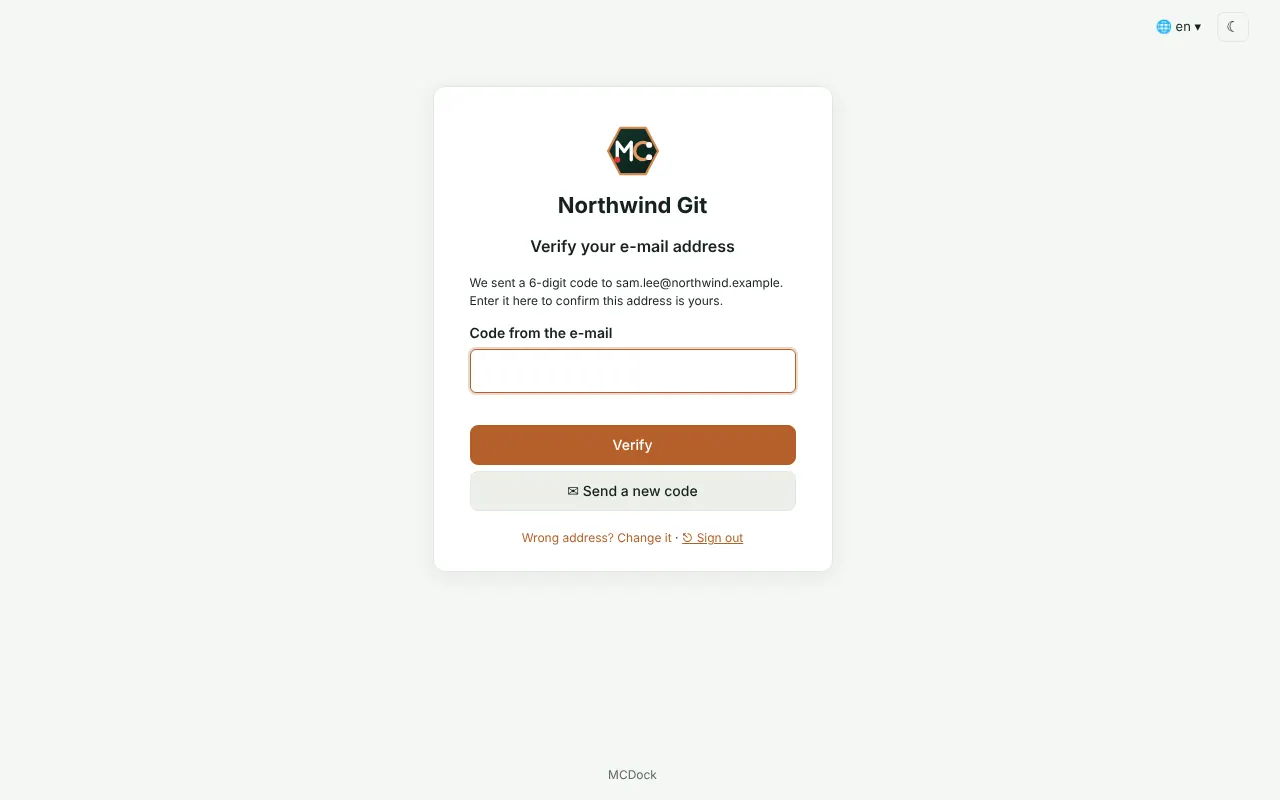
- No e-mail after a minute? Look in your junk folder, then press Send a new code. If the address is wrong, press Change it.
- When the code is right, MCDock says Thank you: your e-mail address is verified and opens normally.

Part 3 · Turn on two-step sign-in (two codes)
Your server may require two-step sign-in. Even if it doesn't, turn it on: it protects your work if your password leaks.
- Open My account → Security and press Set up two-factor authentication.
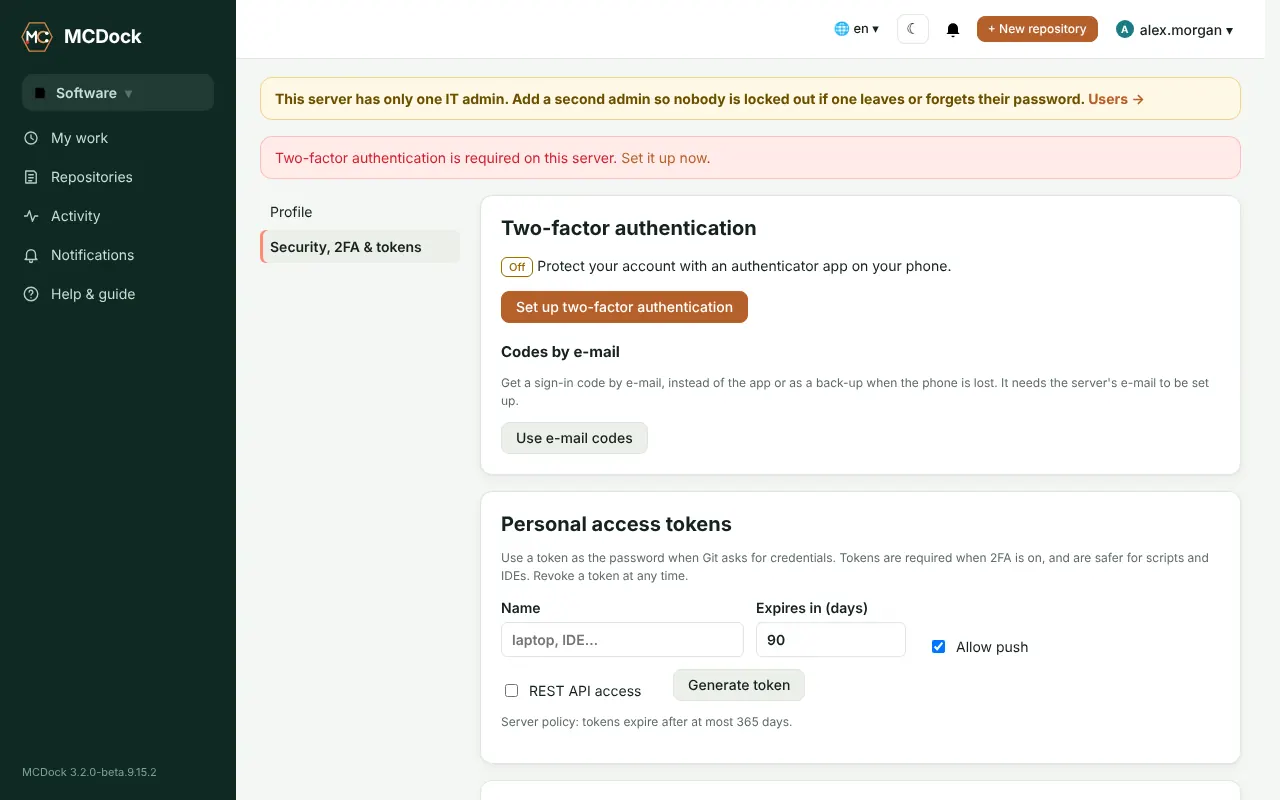
- Scan the QR code with an authenticator app on your phone. The new entry is called MCDock: your e-mail. If you can't scan, type the key shown under the code.
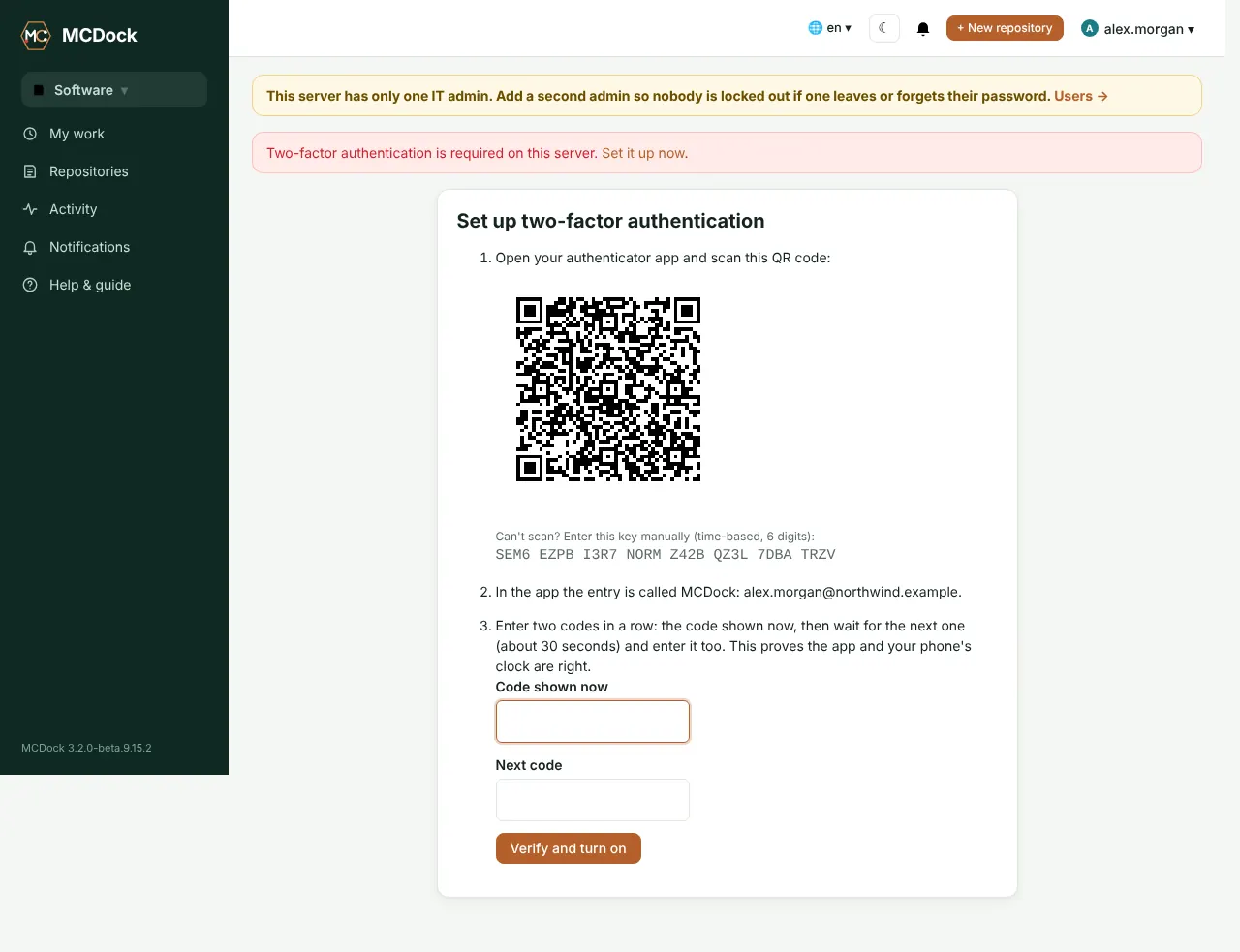
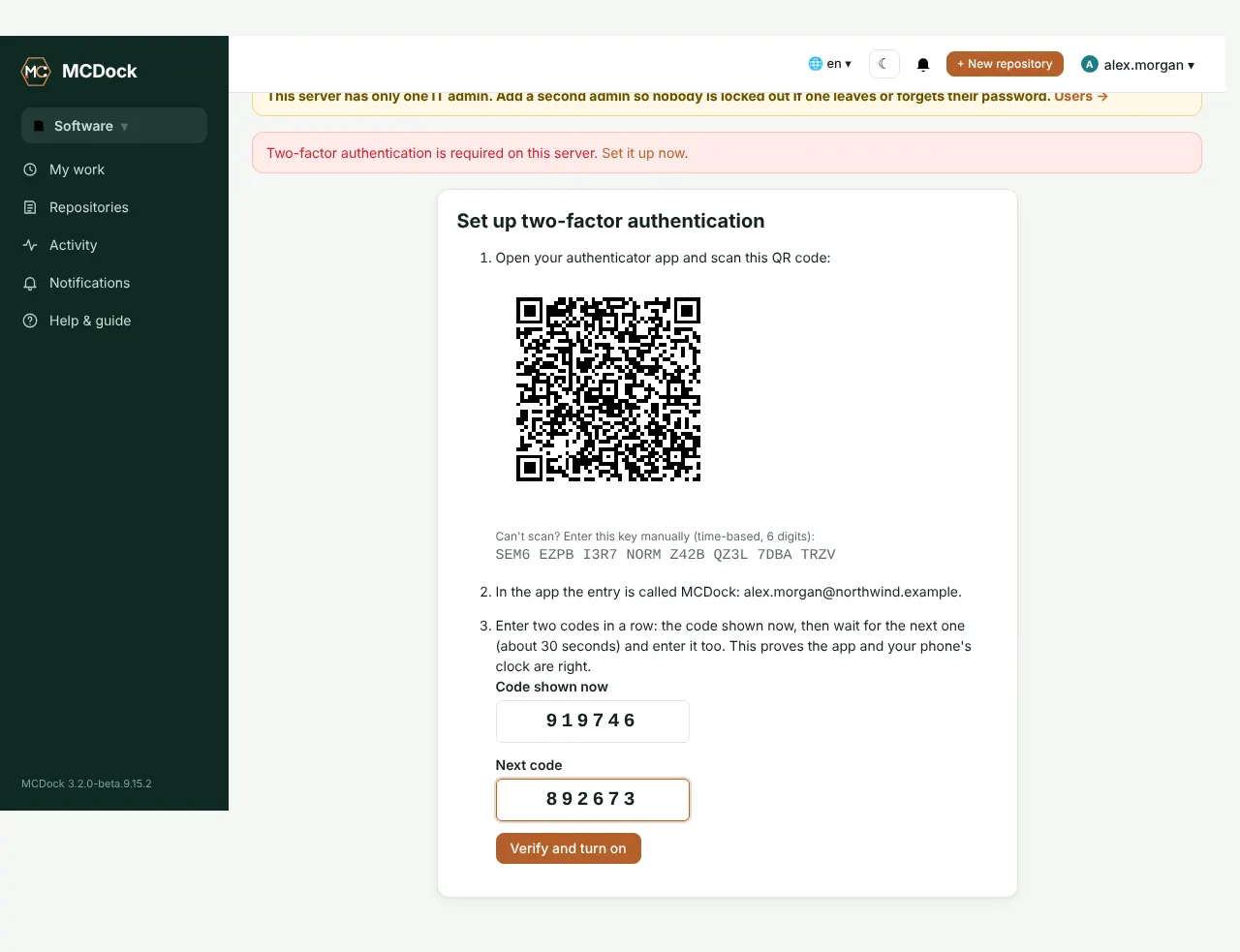
- Type the code the app shows now in Code shown now. Wait about 30 seconds for the next code and type it in Next code. Then press Verify and turn on.
- Save the recovery codes: in a password manager, or printed and kept safe. Each one works once if you lose your phone.
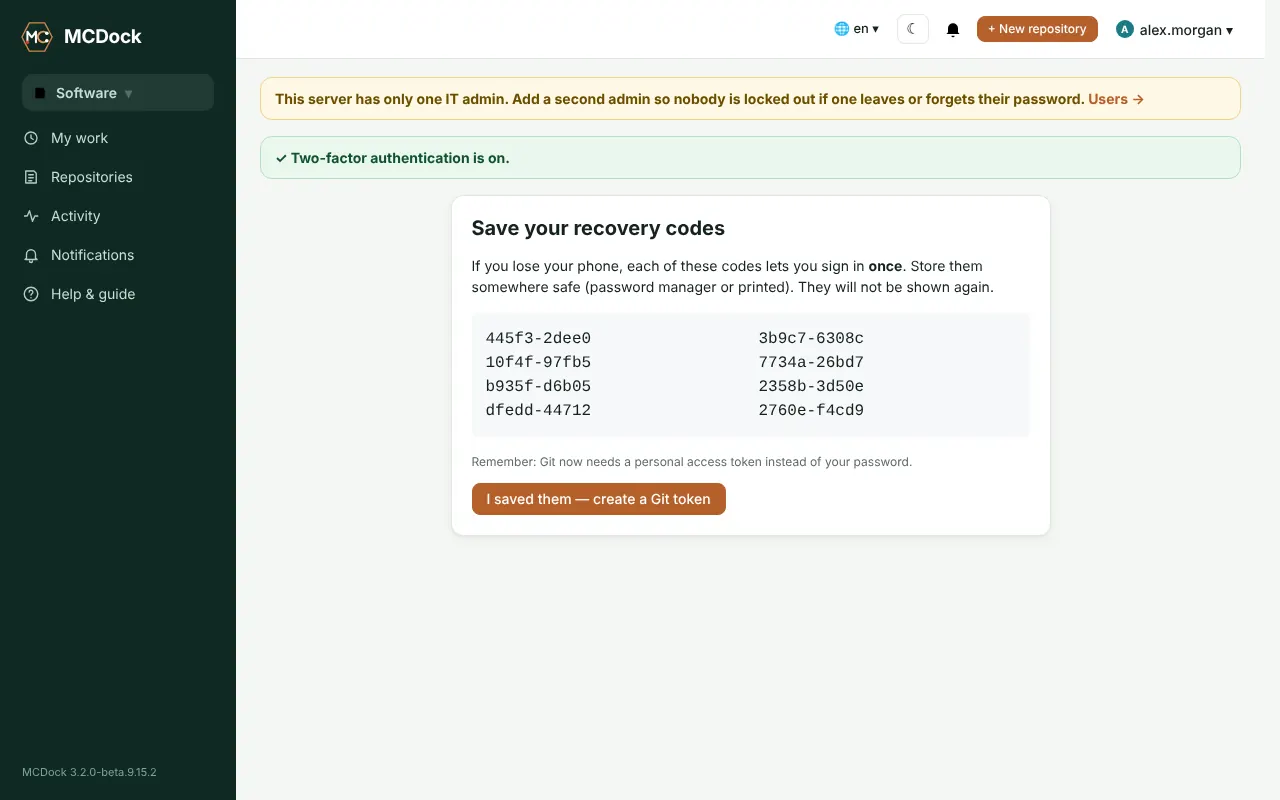
- Git now needs a personal access token instead of your password. Press I saved them — create a Git token, give the token a name (for example Work laptop) and copy it into your Git tool when it asks for a password.
Got a new phone? On My account → Security, use Set up on a new phone or renew the entry. Your old entry keeps working until the new one is confirmed with two codes.
Part 4 · Signing in with two-step sign-in
- After your password, type the 6-digit code from your authenticator app and press Verify.
- No phone with you? Press Send me a code by e-mail, or use one of your recovery codes.

Part 5 · New-device notices
When you sign in from a browser or device MCDock hasn't seen before, you get a notice in the app (the bell) and by e-mail that names the browser and the kind of device.

If it wasn't you:
- Change your password at once (My account).
- On My account → Security, press Sign out all other sessions.
- Tell your IT administrator.
Your devices are listed under My account → Security → Your sign-in devices. Browsers don't tell the server your computer's name, so you can name each device yourself.
Where to get help
- Help & guide in MCDock, or ask your IT administrator.
- The documentation on mcdock.dev.
Updated 25 Nov 2026 · Something missing? Ask in the community.